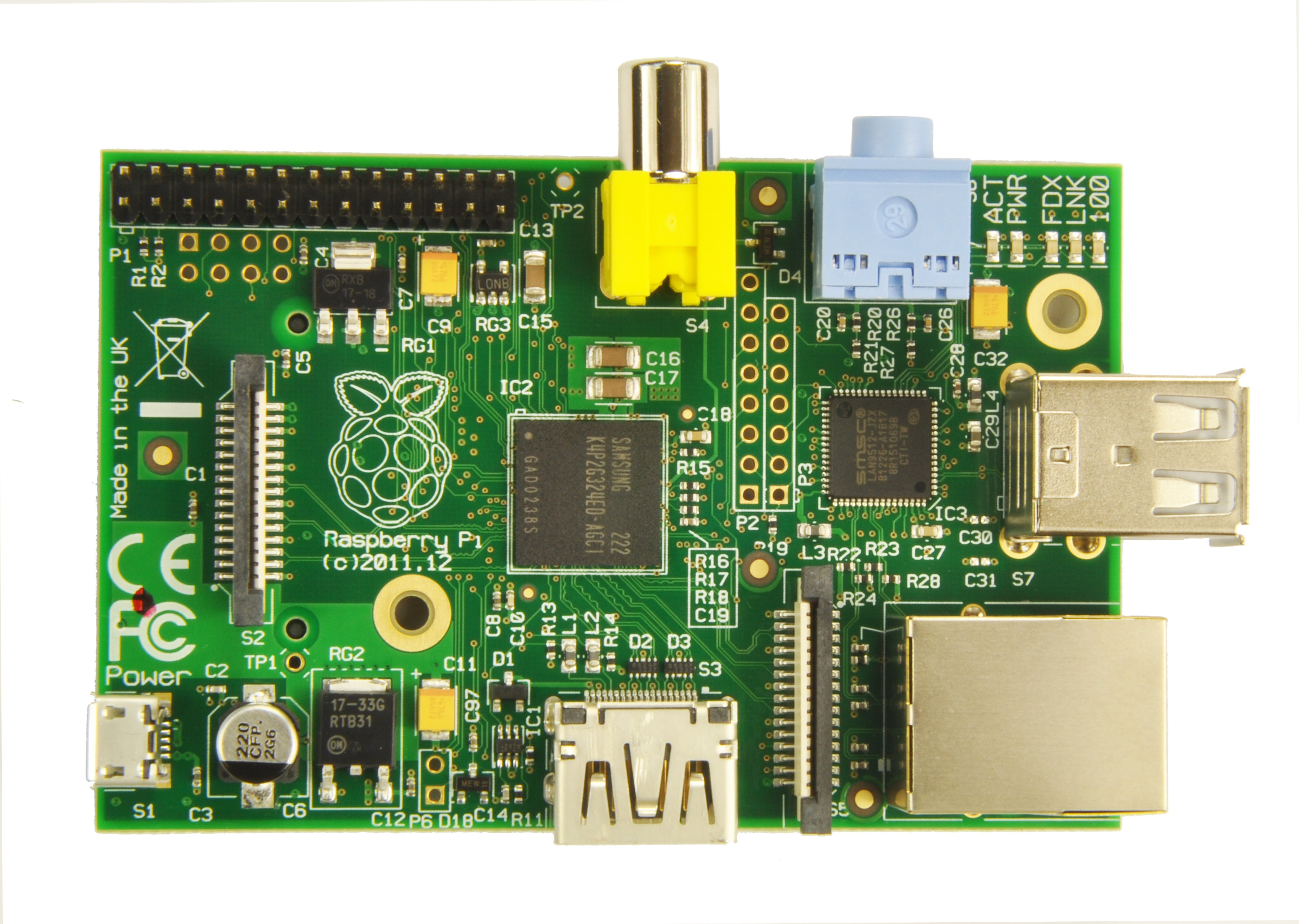
So it's been a while. Sorry about that, I've been lacking the excess energy blogging requires, but from here on in I'll endevour to do better. I'll even make it a New Year's Resolution.
I haven't had time to do much new stuff with the Raspberry Pi, but I have found a new image that I now use as my base. It has XBMC already installed, and though I haven't played with it much, it plays all my videos and music out of the box, so I'm pretty happy. I used the instructions to install the precompiled version, as I've managed to break my original SD card (the physical card, not the install, which is new for me). Though he's since created his own archive so you can 'apt-get install' XBMC from there:
http://michael.gorven.za.net/content/xbmc-raspberry-pi
If you're really geeky and keen you can try and build it yourself, but it takes about 12 hours on the pi, and is kind of tricky (I am not really up to trying it myself, but would love to hear from you if you have).
I've done a little playing with Arduino since we spoke last. I love the Arduino microcontroller, so noob friendly. Most of my code is stolen, which is not just allowed on the Arduino, but encouraged. They have massive libraries of code for use with almost any sensor / servo / thingy / or doodad you can think of. Most of my 'coding' has involved stealing code for the whatsits I'm using and mashing them together, and then asking our resident guru (Pix again) why it doesn't quite work. I've just discovered the 'mapping' function (thanks Simon) which involves reading the input from a sensor, and mapping it to some kind of output device (so far I've used a speaker and a servo).
I'll post some more info soon, but to tide you over here's a picture of my claw which maps the distance you are away from the sonar to the how far apart the fingers of the claw are:
I highly recommend Arduino if you are looking for a brain for your next project. The language is 'c-like' - whatever that means (coders know). But it's relatively simple, even for non-programmers, once you've looked at a few examples. In future I'll be posting more Arduino, as well as more Pi stuff, and hopefully getting them to play together nicely in the not too distant future.
Showing posts with label noobs. Show all posts
Friday, December 28, 2012
Sunday, November 4, 2012
Gaaaaaaaaaaaaaaaames!
Now for the pretty pictures. Well, a little less pretty now we're used to high definition gaming, but what they lack in pixels they make up for in gameplay. Plus they're fun. I like the dry wit present in many of these games. Tasty.
ScummVM
Also relatively painless to install:
apt-get install scummvm
Sound
But sound can be an issue if you're using HDMI. If I haven't mentioned it before (sorry) you should force your Pi to use HDMI for sound if you can (ie aren't using a composite screen / analogue sound out). To do so open the config.txt file located in the boot folder. You will need to be a super user to save it, and so the easiest way is to open it in terminal:
sudo leafpad /boot/config.txt
or, if you've shelled in like I taught you a couple of posts back you will (for now) need to use a command-line text editor:
sudo nano /boot/config.txt
And 'uncomment' the line:
#hdmi_drive=2
Easy, peasy, just remove the hash - #.
hdmi_drive=2
Then save the file and reboot. Sound sorted. Remember to change it back if you want to go back to using the sound out port.
Now you are ready to open up ScummVM (in your Games folder in the Programs menu - press the Windows Key, or click the square in the bottom left corner, go up to the Games folder, and go from there). You should see the bright yellow ScummVM screen. Click the 'Options' button and tick the checkbox for fullscreen mode.
Now to add the games (ScummVM, like Gargoyle, is just the engine used to open and play games). If you've used ScummVM before then you're set. This is the same no matter whether you're using Windows, Linux, Mac, or some unholy hybrid. If you already own the game you can just copy the files across from your CD or floppy to your hard disk. Click 'Add Game,' from within ScummVM, select the game file, and add it and you're ready to go. Detailed instructions on buying the games legally can be found on the official ScummVM website. You can grab Beneath a Steel Sky free from the repositories:
apt-get install beneath-a-steel-sky
And it will either open directly, or you can add it to ScummVM. It is in "/usr/games/sky".
Now for the final step - stay up all night reliving (or creating) awesome childhood memories. And remember...
Saturday, October 27, 2012
Shelling In from Windows
So I'm guessing that you may have heard the phrase 'shell in' before. No, it's not betting on a rigged shell game on the streets of New York City. I had heard 'shell in' a lot of times (I hang with geeks), and vaguely understood that it meant controlling one computer from another computer (via a network) - but that was about as far as I went before owning a Pi. It is a very useful ability to have, however, as it will let you do things on the Pi with only an ethernet cable, power, and your internet router.
Firstly you will need to scan the IP addresses on the router. This will tell you what is connected (including the Windows machine you are using, and the the Raspberry Pi). The program I use is called Angry IP Scanner.
Step 1: Download it here. I am using version 3.0 beta-6 (if you don't know what that means, don't worry about it).
Step 2: Run the program (it's called ipscan-win32-3.0-beta6 in my case, yours will be ipscan-win...? where the ...? is whether it's 64 or 32 bit (32 bit will run in 64 bit windows, so it's easier to just use that one unless you have issues) and the rest of the ...? is the name of the version. I use it enough that it was worth pinning a shortcut to my taskbar.
Step 3: When you first open it it'll scan only a range of 1 IP address (shown at the very top of the screen). That is the address of the computer you are running the program you are working on. The IP address of the Pi will probably be within a few numbers of this, depending on how many devices you have joined to your router
So in the first box of the IP range (highlighted in blue) put a number 10 below and in the second box enter a number 10 above your computer's address. Press 'Start.' Since it's plugged directly into the router the 'Ping' will be very low. Yup, the Pi's address on this router is '192.168.1.103' - remember that number, you'll need it in a minute.
Now that you know where your Pi is on the network. You need to connect - for that we'll be using PuTTY.
Step 1: Download and run it.
Step 2: Enter the address of the Pi into the Host Name (or IP address) box:
Leave the Port as 22 (no changes there) and click the Open button (highlighted in blue).
Step 3: Then the PuTTY window opens you will be asked who you want to 'login:as' - This is your user name. If you are running Raspbian the default is:
pi
You will then need to enter your password. Hopefully you've changed this from the default, but if not, this will be:
raspbian
Congratulations, you've successfully shelled in to your pi. You will only be able to use the command line tools from here (since anything else will require a monitor to be plugged into the pi), but that's enough to install software, and do cool stuff like 'Dark Pi Rises' or creating an IP camera to watch your animals.
Wow, exciting.
A bit shout-out to Tim for teaching me how to shell in and helping me grab the software.
Firstly you will need to scan the IP addresses on the router. This will tell you what is connected (including the Windows machine you are using, and the the Raspberry Pi). The program I use is called Angry IP Scanner.
Step 1: Download it here. I am using version 3.0 beta-6 (if you don't know what that means, don't worry about it).
Step 2: Run the program (it's called ipscan-win32-3.0-beta6 in my case, yours will be ipscan-win...? where the ...? is whether it's 64 or 32 bit (32 bit will run in 64 bit windows, so it's easier to just use that one unless you have issues) and the rest of the ...? is the name of the version. I use it enough that it was worth pinning a shortcut to my taskbar.
Step 3: When you first open it it'll scan only a range of 1 IP address (shown at the very top of the screen). That is the address of the computer you are running the program you are working on. The IP address of the Pi will probably be within a few numbers of this, depending on how many devices you have joined to your router
So in the first box of the IP range (highlighted in blue) put a number 10 below and in the second box enter a number 10 above your computer's address. Press 'Start.' Since it's plugged directly into the router the 'Ping' will be very low. Yup, the Pi's address on this router is '192.168.1.103' - remember that number, you'll need it in a minute.
Now that you know where your Pi is on the network. You need to connect - for that we'll be using PuTTY.
Step 1: Download and run it.
Step 2: Enter the address of the Pi into the Host Name (or IP address) box:
Leave the Port as 22 (no changes there) and click the Open button (highlighted in blue).
Step 3: Then the PuTTY window opens you will be asked who you want to 'login:as' - This is your user name. If you are running Raspbian the default is:
pi
You will then need to enter your password. Hopefully you've changed this from the default, but if not, this will be:
raspbian
Congratulations, you've successfully shelled in to your pi. You will only be able to use the command line tools from here (since anything else will require a monitor to be plugged into the pi), but that's enough to install software, and do cool stuff like 'Dark Pi Rises' or creating an IP camera to watch your animals.
Wow, exciting.
A bit shout-out to Tim for teaching me how to shell in and helping me grab the software.
Sunday, October 21, 2012
What do you think you're doing?
It's been harder than I thought - getting the Pi up and running the way I want. Lots of trawling and trial and error (oh, the errors). Then I had to do it all again! when I corrupted the SD card (more about avoiding that later).
So here we are, the reason for my blog. I figured I might as well document my experience getting pi up and running for others as well as myself. Hope it's of some use.
A big thanks to the folks at the Adelaide Hackerspace who've helped me get my baby up and running. Especially Pix, Tim, and Jon. I promise to mostly use my new skills for good. :)
So here we are, the reason for my blog. I figured I might as well document my experience getting pi up and running for others as well as myself. Hope it's of some use.
A big thanks to the folks at the Adelaide Hackerspace who've helped me get my baby up and running. Especially Pix, Tim, and Jon. I promise to mostly use my new skills for good. :)
Subscribe to:
Comments (Atom)