Showing posts with label help. Show all posts

Sunday, November 4, 2012

Now What - Old School Gaming

The Raspberry Pi is good for so much more than watching the movies and tv shows you've recorded though. I love being able to use my computer from my couch, and here are some of the things I've been up to.

Games

Old school style. No, that doesn't mean Doom - Before that, a long way before. I was born in 1978, so grew up with text adventures (though not as many as I'd like) and point-and-click adventure games (ditto). Actually, though I played them at school occasionally, and was totally obsessed with a couple of Infocom games my mother bought me, it wasn't until I 'rediscovered' them as a teenager (in the bargain bin in game shops) that I really got into these games.  Coming back to them yet again, in my 30s, they still hold up remarkably well.

Text Adventures / Interactive Fiction

Gargoyle was easy. Just type:
sudo apt-get install gargoyle-free
into the command line. After that you will need to run it (gargoyle from the command line, or there will be a link in your your programs bar, under 'Games').

Gargoyle is a front end for text adventure formats (just like XArchiver is a front end Archiving tools). It plays:
  • TADS games (a newer format for amateur writers,
  • Z formats z3 - z8 (Infocom, also popular with the new IF (interactive fiction) breed),
  • SAGA (Scott Adams Grand Adventure)
  • Level 9
  • Magnetic Scrolls
  • A heap of others.
Chances are, though, if I haven't piqued your interest by now you should just jump down to the adventure games section (or skip this post altogether if, immersive, story based gameplay isn't your thing) :p.

There was a bit of chatter on the forums about Zork.  Yes, gargoyle will play it (it's in the z-code formate).  Now that it's been released into the wild it's easy to source too:
http://ifdb.tads.org/search?searchfor=zork&searchgo=Search+Games
Just download the files from the Interactive Fiction archive.  Make sure you grab the z-machine files.  When you can either click on the name of the game you want to play, and choose to open it in Gargoyle.  I recommend ticking checkbox to always open those kinds of files in Gargoyle, so that in future all you need to do is double click on the game file.  Though opening a game from within Gargoyle is also easy.

The IF database is a good place to go for games.  You won't be able to find copies of other old favourites from the commercial realms because, while they're not still in 'print' (more's the pity) they are still covered by copyright and haven't been released by their makers.  You may be lucky like me and be able to grab a few from ebay, or source them elsewhere.  You can read details about the game on the archive, but you can't download it.

What the archive does well, though, is make the great output of 'amateur' IF writers available to play.  Though many of these writers are only 'amateur' in that they never got paid.  The four and five star games are at least as high in content, quality, and polish as the games of yore, and many of the 3 star games are also great fun (if a little lacking in polish).  Look through the lists, or do a more detailed search if you're looking for a certain type of game.  Heck, you can even start your own list, or get recommendations based on other games you like - just look down the bottom of the game description.

If you're new to all this (good on you for stretching your horizons) or it's been a while I highly recommend a play through of The Dreamhold by Andrew Plotkin.  It's an engaging game, lots of fun, and it has an 'adaptive' tutorial (ie the tutorial can read the info about how you've played the game so far and give you hints based on that.  Feel free to type 'help' at any time to get more info though.

Hopefully that's enough (too much???) to get you started.  Now, on to the pretty pictures.

I've decided to split these posts up, as I may have waffled on a little too much to include them both in the one update.

Sunday, October 21, 2012

Set Up

Congratulations!  You've got an operating system installed, and a working Raspberry Pi - now what?  This blue screen doesn't look particularly useful.  Well, it is and it isn't.  This is the raspi-config menu, and it's for getting things organised before you get down to using your raspberry pi.

The main step here is to select 'expand_rootfs' so that you can use your whole card as your hard disk drive (not just the 2GB in the image you downloaded).  Next you might want to 'change_timezone' and select yours (so that the pi knows what time it is where you are, and displays it correctly).  Finally, as a noob, you will want to arrow down to 'boot_behavious' and tell your computer to start the desktop on boot.  Then arrow down (or press tab) until you get to the <Finish> menu.  You will be asked if you want to reboot.  You do.

When the RPi has finished rebooting you should be looking at your nice neat Raspbian operating system.  Even if you haven't used Linux before this screen should be similar enough to Windows for you to feel at home.  Where you go from here will depend upon what you want to do with your RPi.

Getting Started

First things first, we have to get some kind of operating system running so we can use our Raspberry Pi.  I chose Raspbian because it has hard float, is recommended by the Raspberry Pi Foundation, and (this was the clincher) because portmanteaus make me smile (I am an English major after all).  If you are a complete and total noob, then it might be easier to buy an SD card with Raspbian (or one of the other operating systems) already installed.  If you'd like to know how to make your own, though, here is a step-by-step.

Step 1:  Download the latest Raspbian version from here:
http://www.raspberrypi.org/downloads

(it was 2012-09-18-wheezy-raspbian.zip for me).

Step 2:  I'm going to assume that most noobs will be running windows on their home machine, and thus will need to download and unzip Win32DiskImager.

Step 3:  Insert a blank compatible SD card in your SD card reader, open up Win32DiskImager, and select the image you downloaded in step 1 (it should automatically select your SD card as the write destination).

Step 4:  Click the "Write" button.

Step 5:  Wait (patiently or impatiently) for your SD card to finish writing.

Step 6:  Eject it from your SD card reader, insert it in your (unpowered) Raspberry Pi, then connect everything up and go!

Step 7:  Set Up.

What do you think you're doing?

It's been harder than I thought - getting the Pi up and running the way I want. Lots of trawling and trial and error (oh, the errors). Then I had to do it all again! when I corrupted the SD card (more about avoiding that later).
Raspberry Pi
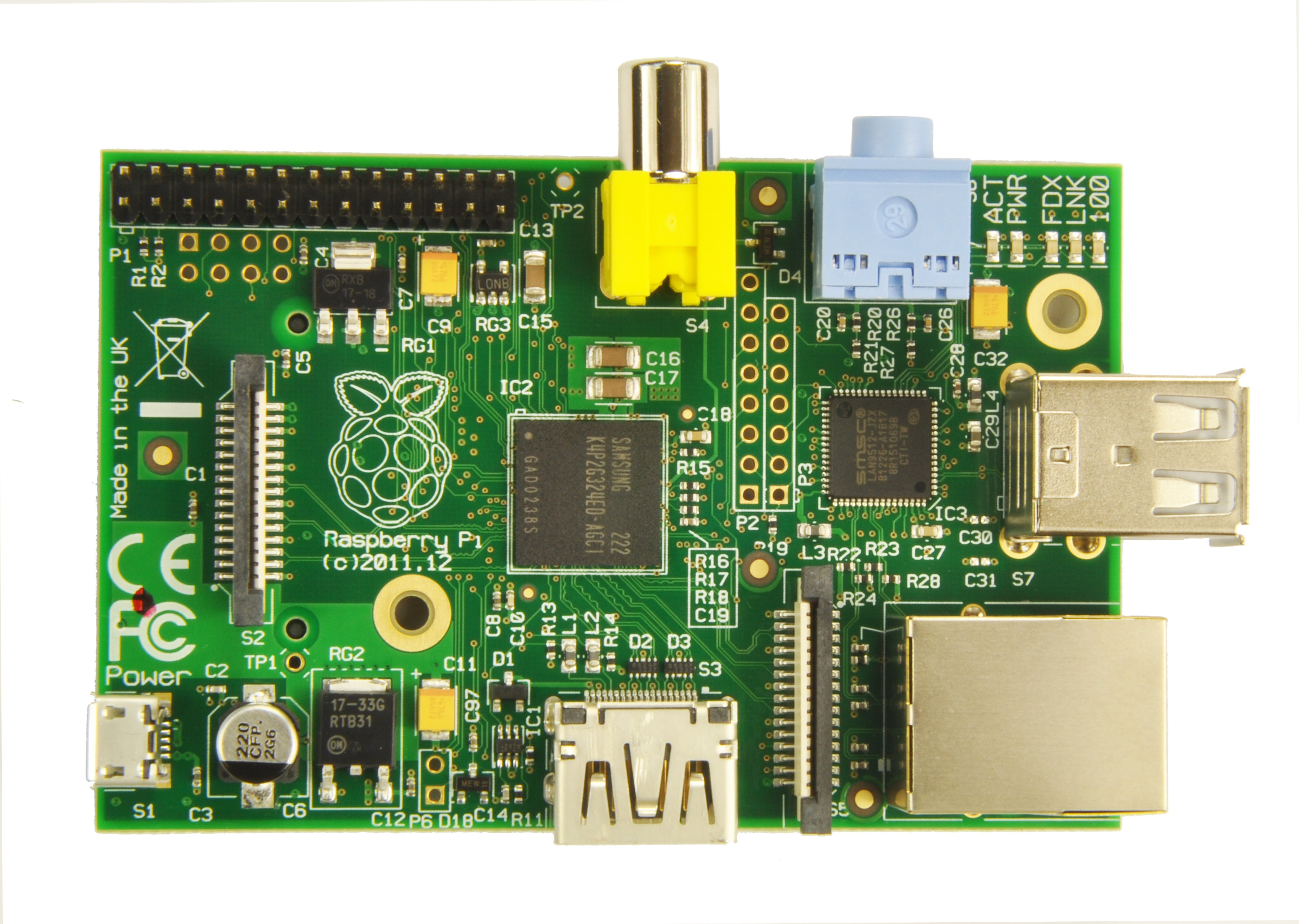
So here we are, the reason for my blog. I figured I might as well document my experience getting pi up and running for others as well as myself. Hope it's of some use.

A big thanks to the folks at the Adelaide Hackerspace who've helped me get my baby up and running.  Especially Pix, Tim, and Jon.  I promise to mostly use my new skills for good.  :)